
Claude 的 Computer Use 功能可以"看到"你的电脑屏幕并操作它——截图识别、鼠标移动、键盘输入。这相当于给 AI 配了一双眼睛和一双手,可以执行任何人类能在电脑上完成的操作。
你将学到什么
- Computer Use 的工作原理和支持的操作
- 三大内置工具:computer、text_editor、bash
- 构建桌面自动化 Agent 的完整流程
- 安全注意事项和最佳实践
Computer Use 工作原理
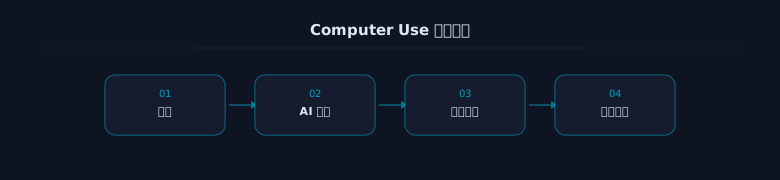 Computer Use 工作原理
Computer Use 的核心流程:
- 截屏 → Claude 看到当前屏幕内容
- 识别 → Claude 理解屏幕上的 UI 元素
- 操作 → Claude 发出鼠标/键盘指令
- 验证 → 再次截屏,确认操作结果
这是一个持续的"观察-行动"循环,与人类操作电脑的方式相同。
三大内置工具
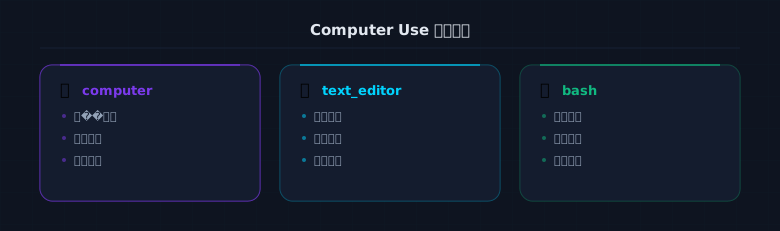 三大内置工具
computer 工具
控制鼠标和键盘:
python
import anthropic

client = anthropic.Anthropic()

response = client.messages.create(
    model="claude-sonnet-4-6",
    max_tokens=4096,
    tools=[
        {
            "type": "computer_20250124",
            "name": "computer",
            "display_width_px": 1920,
            "display_height_px": 1080,
            "display_number": 0,
        }
    ],
    messages=[
        {"role": "user", "content": "打开浏览器,搜索'Claude API 文档'"}
    ]
)
支持的操作类型:
screenshot— 截取当前屏幕mouse_move— 移动鼠标到指定坐标left_click/right_click/double_click— 鼠标点击type— 键盘输入文字key— 按下特定按键(Enter、Tab、快捷键等)scroll— 滚动页面
text_editor 工具
直接操作文件内容(比通过 UI 编辑更高效):
python
{
    "type": "text_editor_20250124",
    "name": "str_replace_editor"
}
支持 view、create、str_replace、insert 四种操作。
bash 工具
在终端中执行命令:
python
{
    "type": "bash_20250124",
    "name": "bash"
}
构建桌面自动化 Agent
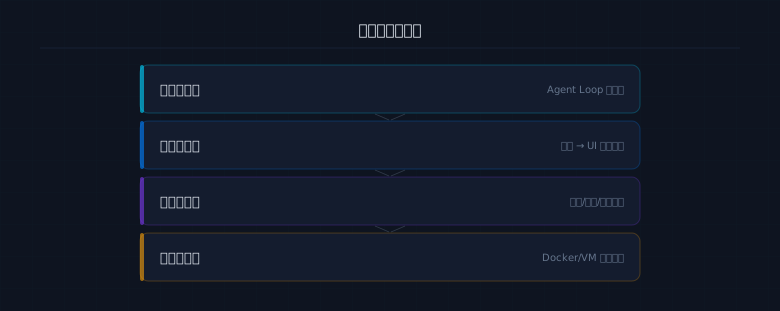 桌面自动化架构
python
import anthropic
import base64
import subprocess

client = anthropic.Anthropic()

TOOLS = [
    {
        "type": "computer_20250124",
        "name": "computer",
        "display_width_px": 1920,
        "display_height_px": 1080,
        "display_number": 0,
    },
    {
        "type": "bash_20250124",
        "name": "bash",
    },
    {
        "type": "text_editor_20250124",
        "name": "str_replace_editor",
    }
]

def take_screenshot():
    """截取屏幕并返回 base64"""
    subprocess.run(["screencapture", "-x", "/tmp/screen.png"])
    with open("/tmp/screen.png", "rb") as f:
        return base64.standard_b64encode(f.read()).decode()

def execute_computer_action(action):
    """执行 computer 工具的操作"""
    action_type = action.get("action")
    if action_type == "screenshot":
        return take_screenshot()
    elif action_type == "type":
        # 使用 xdotool 或 AppleScript 输入文字
        text = action.get("text", "")
        subprocess.run(["osascript", "-e",
            f'tell application "System Events" to keystroke "{text}"'])
    elif action_type == "left_click":
        x, y = action["coordinate"]
        subprocess.run(["cliclick", f"c:{x},{y}"])
    # ... 其他操作类型
    return take_screenshot()

def computer_use_agent(task, max_steps=20):
    """Computer Use Agent 主循环"""
    messages = [{"role": "user", "content": task}]

    for step in range(max_steps):
        response = client.messages.create(
            model="claude-sonnet-4-6",
            max_tokens=4096,
            tools=TOOLS,
            messages=messages,
        )

        if response.stop_reason != "tool_use":
            # 任务完成
            for block in response.content:
                if hasattr(block, "text"):
                    return block.text
            return "任务完成"

        # 处理工具调用
        tool_results = []
        for block in response.content:
            if block.type == "tool_use":
                print(f"  Step {step + 1}: {block.name}")
                if block.name == "computer":
                    result = execute_computer_action(block.input)
                    tool_results.append({
                        "type": "tool_result",
                        "tool_use_id": block.id,
                        "content": [{"type": "image", "source": {
                            "type": "base64",
                            "media_type": "image/png",
                            "data": result,
                        }}]
                    })
                elif block.name == "bash":
                    output = subprocess.run(
                        block.input["command"],
                        shell=True, capture_output=True, text=True
                    )
                    tool_results.append({
                        "type": "tool_result",
                        "tool_use_id": block.id,
                        "content": output.stdout + output.stderr,
                    })

        messages.append({"role": "assistant", "content": response.content})
        messages.append({"role": "user", "content": tool_results})

    return "达到最大步数限制"
安全注意事项
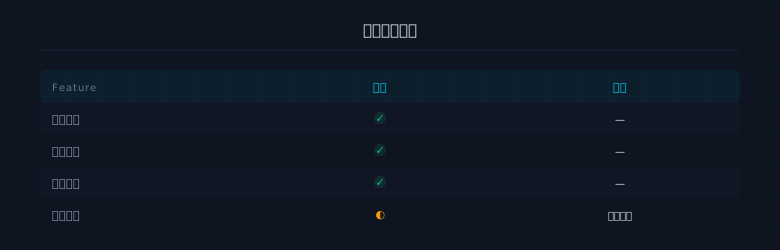 安全注意事项
Warning: Computer Use 给予 AI 直接操作电脑的能力,必须谨慎使用。
必须遵循的安全原则:
- 隔离环境:在虚拟机或 Docker 容器中运行,而非你的主系统
- 最小权限:不要用管理员账号运行
- 人工确认:关键操作(如删除文件、发送邮件)前要求用户确认
- 网络限制:限制 Agent 可访问的网站和服务
- 操作日志:记录每一步操作,便于审计和回溯
实战练习
Tip: 在安全环境中体验 Computer Use。
- 使用 Docker 容器搭建一个隔离的桌面环境
- 让 Claude 完成一个简单的桌面任务(如打开记事本写一段文字)
- 观察 Agent 的截屏-识别-操作循环
关键要点
Note: 本文核心总结
- Computer Use = 截屏识别 + 鼠标键盘操作的循环
- 三大工具:computer(UI操作)、bash(终端)、text_editor(文件)
- 一定要在隔离环境中使用,安全第一
- 适合 RPA 自动化、UI 测试、桌面操作等场景